What it is
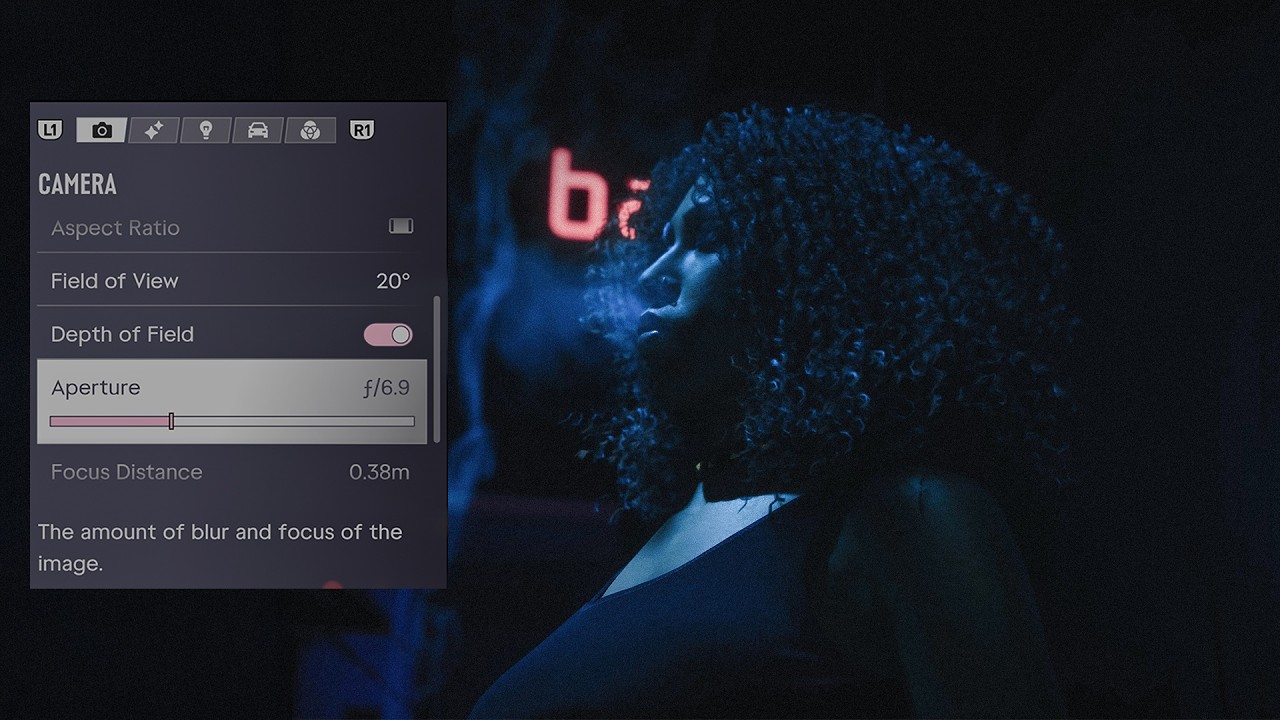
GTA 6's photo mode is called Photo Studio, and it is a big step up from snapping pictures on a phone. Beebom's guide says it is there from the moment you take control of Lucia in the prologue, with no missions needed to unlock it. Photographer Lee Zavitz's walkthrough video shows how much the lighting tools can do.
How to open it
Pause the game with Options on PS5 or Menu on Xbox Series X|S, then select Photo Studio. To keep a picture, choose Save Photo, or hide the interface and use your console's own screenshot button. Beebom notes it also works during cutscenes, though some settings show as Currently Unavailable there.
What you can change
You can move the camera, change depth of field, apply filters and hide your character from the shot. Beebom says you can add up to five light sources and adjust each one's colour and intensity. The one notable gap is that Photo Studio can't change the weather or the time of day, so to shoot a storm or a night skyline you have to wait for it, or skip time by sleeping first.
Selfies and the phone camera
For quick shots, the phone camera unlocks once you take control of Jason. Press Up on the D-pad, open the Camera app (third icon in the first row), switch to the front camera and take the photo. Beebom lists six poses and seven expressions for Jason, and in joint selfies you can change your partner's pose too. The rear camera has up to 5x zoom, grid lines and 17 filters, and the Gallery app stores your shots.
Snapmatic is back as an in-game social app. You can browse, like and read comments, and mark places from posts on your map, which is a handy way to find photo spots.
Tips
Sleep until evening for golden-hour light, since Photo Studio can't change the time. Use a single coloured light low to one side for night portraits. And save through the menu if you want the picture kept in the game's gallery.